
Appearance
Rolling Back a Release
How to revert a game update that has gone wrong.
How to revert a game update that has gone wrong.
Sometimes a release turns out to be broken and you need to revert to the previous version. This document describes the various options and the conditions required.
To roll back a Game Config update, publish the old Game Config version in the LiveOps dashboard. See Working with Game Configs for more detailed description.
Note that Game Config changes may be incompatible with existing Player or Entity data if there are Game Config Item References to items that no longer exist. See Graceful Deletion for more information how to handle these situations.
After a Logic Version update, reverting to an older server can cause data loss, because the older logic may not be able to interpret data written by the newer logic. If you are sure the new version did not introduce incompatible persisted data, you may attempt to roll back the server. Incompatible changes are also safe to roll back as long as no player has actually been persisted at the new version yet. For example, if the server has been in maintenance mode since the update and nobody has logged in, no incompatible changes have been applied and you may treat it as a compatible rollback.
Otherwise, for the incompatible case, see Rolling Back an Incompatible Update.
Use Patch Versions for compatible updates
Avoid bumping the Logic Version for changes that don't alter shared client/server logic. Ship those as Client Patch Versions instead. Client-only updates need no server rollback and carry none of the data-loss caveats below.
Server by default prevents Logic Version rollbacks. This is to ensure no data loss happens if an old server is accidentally deployed. To revert the server, we must first explicitly mark the rollback versions as compatible:
Deploy a server whose Supported Logic Version Range is [L, H], where L is the version you want to roll back to and H is the (higher) new version. For example, if we deployed a server with version 5 and that turned out to be faulty, and our previous version was 4, the values would be L = 4 and H = 5.
public MetaplayCoreOptions Options => new MetaplayCoreOptions(
    ...
    supportedLogicVersions: new MetaVersionRange(5, 5),
    supportedLogicVersions: new MetaVersionRange(4, 5),
    ...);
Build and deploy
metaplay build image
metaplay deploy server [ENVIRONMENT]
On the LiveOps Dashboard Settings page, edit the Client Compatibility Settings and set the Refuse logic versions newer than back to L, so the server refuses (or redirects) clients newer than L. The dashboard will warn you, but still lets you proceed.
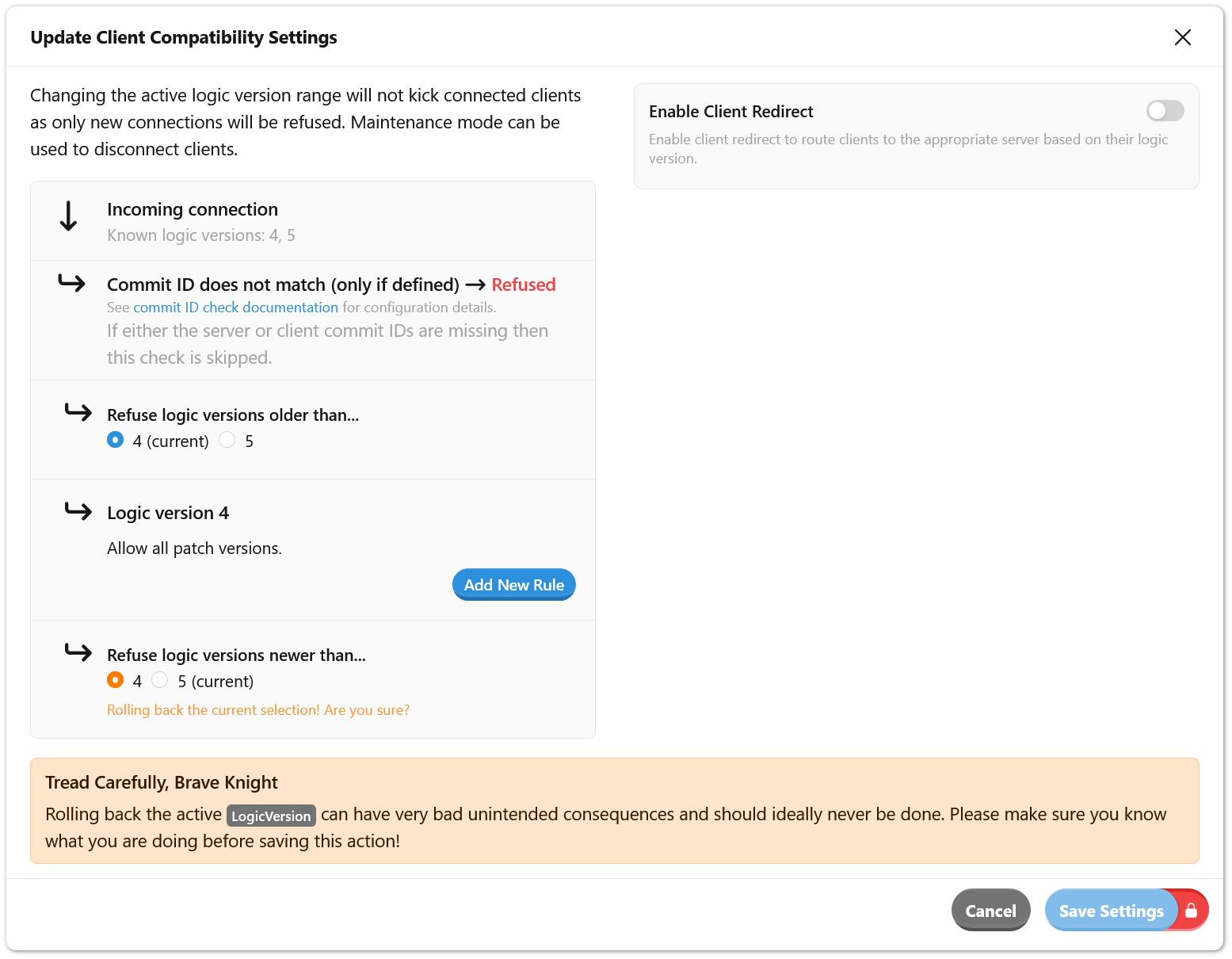
With the maximum and minimum version set to L, we can now revert the server. Deploy the old server, or any compatible server with version L.
# Deploy a previously-built server image that runs version L = 4
metaplay deploy server [ENVIRONMENT] [OLD_SERVER_IMAGE_TAG]
See Logic Versions for more on the Supported and Active Logic Version Ranges and how to change them.
Some updates change the format or the layout of the data. Once that data has been saved, the old server can no longer be redeployed, because it cannot load the affected entities. This comes up in three ways.
For the first two cases, the only way to roll back is to revert the database itself, discarding any data written since the update. How you do that depends on your environment: Production Database Rollback for hosted production plans, or Development Database Reset for development environments.
Databases in the Production plan have database backups enabled. Contact us to roll back to an older snapshot.
In development environments, automatic backups are not available. The way to recover after a broken release is to wipe the database:
Never Reset a Production Database
Resetting the database deletes all data. It is only suitable for development and pre-production environments where data loss is acceptable. Never apply this to a production environment.
metaplay remove server [ENVIRONMENT].metaplay database reset [ENVIRONMENT]. This deletes all data.metaplay deploy server [ENVIRONMENT].See Database Operations for the relevant tooling.